

Introduction :
Microsoft Excel isn’t just a spreadsheet tool—it’s a powerhouse for productivity. From simple number crunching to advanced data modeling, Excel helps professionals, students, and businesses save time, reduce stress, and work smarter. Yet, many of its best features remain hidden.
1. Freeze Panes – Keep Headers Always Visible
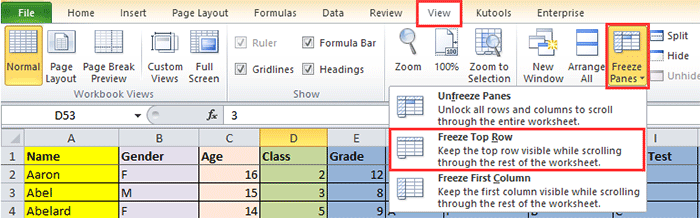
Scrolling through long spreadsheets can get confusing. With Freeze Panes, you can lock rows or columns so they always remain visible.
2. Flash Fill – Let Excel Guess the Pattern
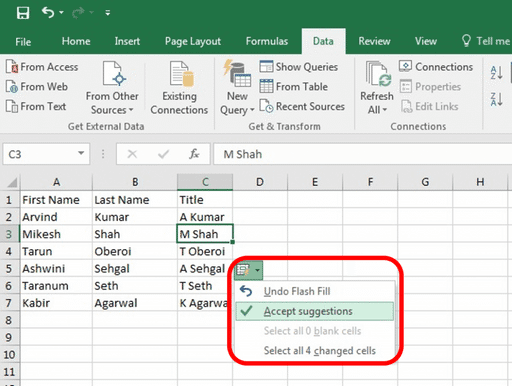
Instead of manually typing repetitive data, use Flash Fill to automatically complete patterns.
Example:
Excel will recognize the pattern and fill the rest.
Type first names in one column and last names in another. Start writing full names in a new column.
3. Remove Duplicates – Clean Data Instantly
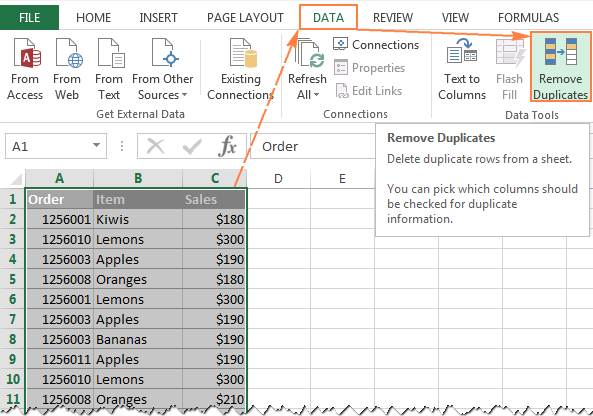
Data often contains duplicates that create confusion. Excel’s Remove Duplicates tool cleans your list in seconds.
Steps:
Select your data → Data tab → Remove Duplicates
4. Conditional Formatting – Highlight What Matters
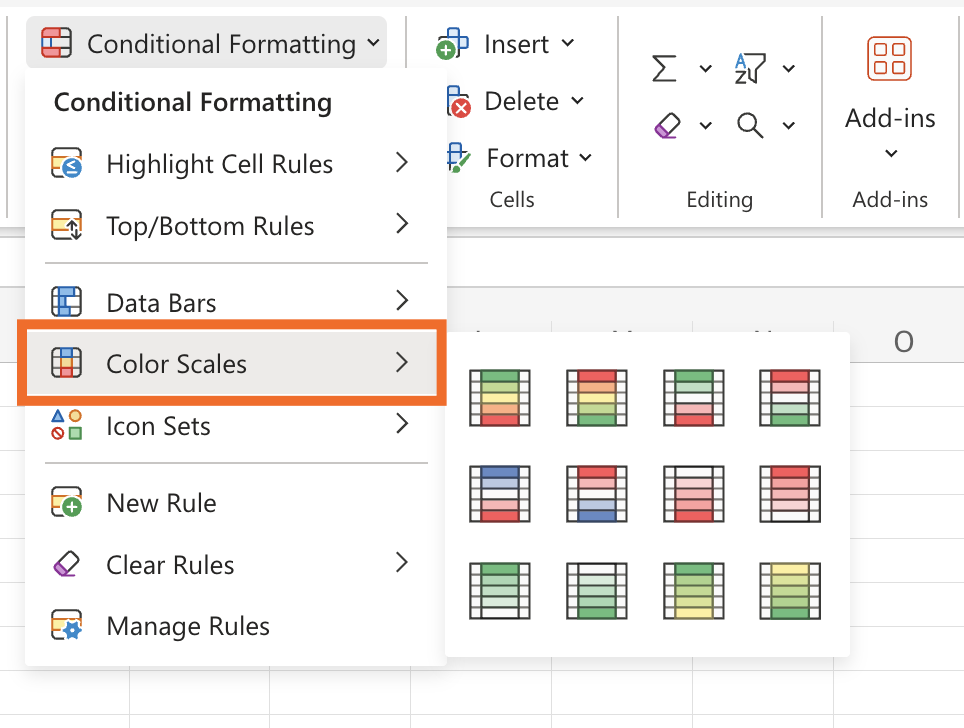
Make your data visually meaningful by highlighting key values.
Example:
Highlight overdue dates in red.
Highlight sales greater than $10,000 in green.
5. VLOOKUP & XLOOKUP – Find Anything in Seconds
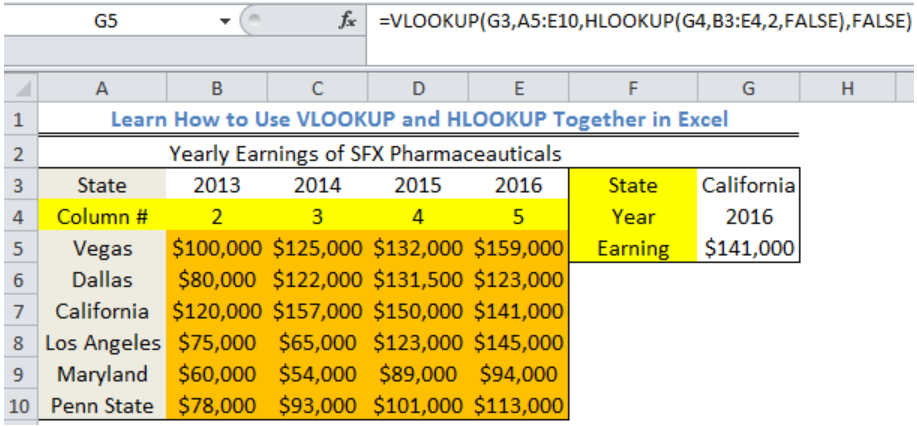
Instead of wasting time scrolling, use lookup formulas to instantly find information.
- Find a student’s grade by entering their roll number.
Search data from left-to-right or right-to-left without restrictions (a modern upgrade to VLOOKUP).
6. PivotTables – Summarize Large Data Quickly
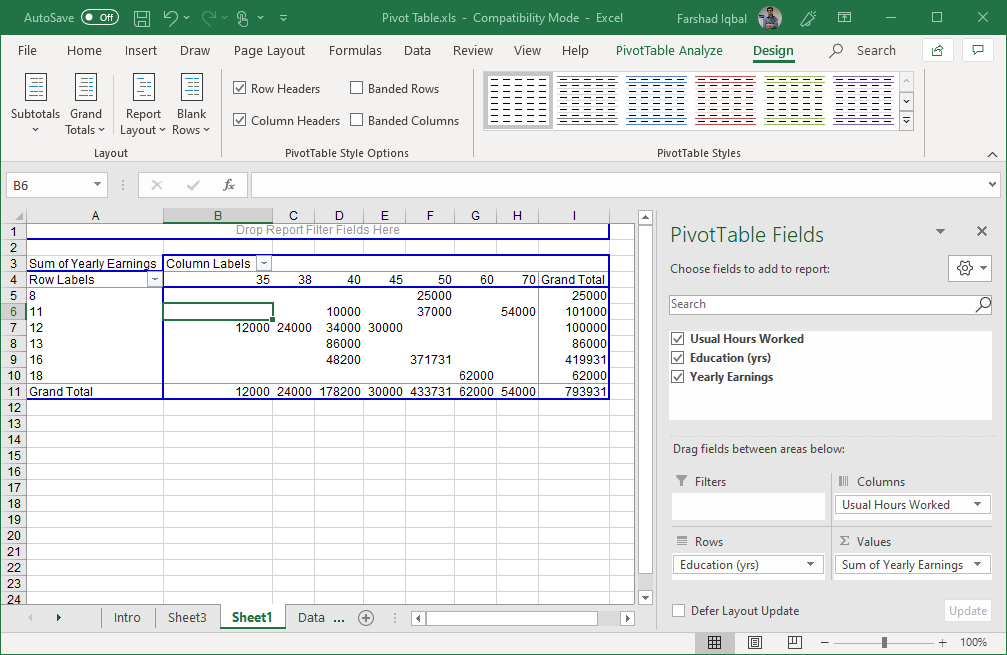
PivotTables let you analyze data in seconds—no complex formulas needed.
Example:
From a sales dataset, create a PivotTable to see total sales by region or top-selling products.
7. Power Pivot & DAX – Handle Big Data Like a Pro
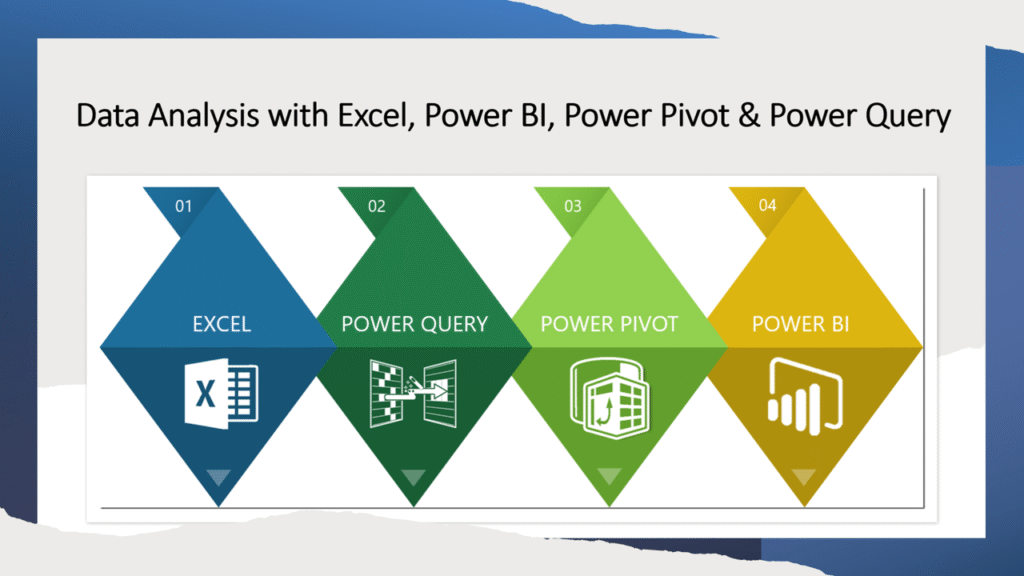
For advanced users, Power Pivot allows you to work with millions of rows and create relationships between tables. Add DAX (Data Analysis Expressions) for complex calculations.
8. Dynamic Arrays & LAMBDA – Smarter Formulas
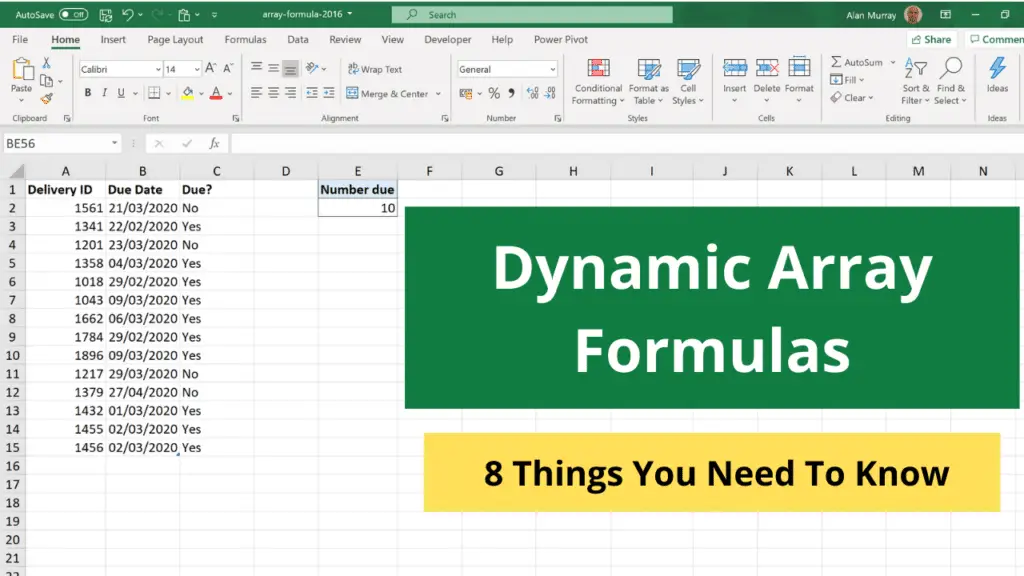
Excel now supports dynamic arrays that spill results automatically. Combine that with LAMBDA functions to create your own custom formulas.
Example:
Create a custom formula to calculate profit margins for any dataset.
9. Solver Add-In – Optimize Decisions
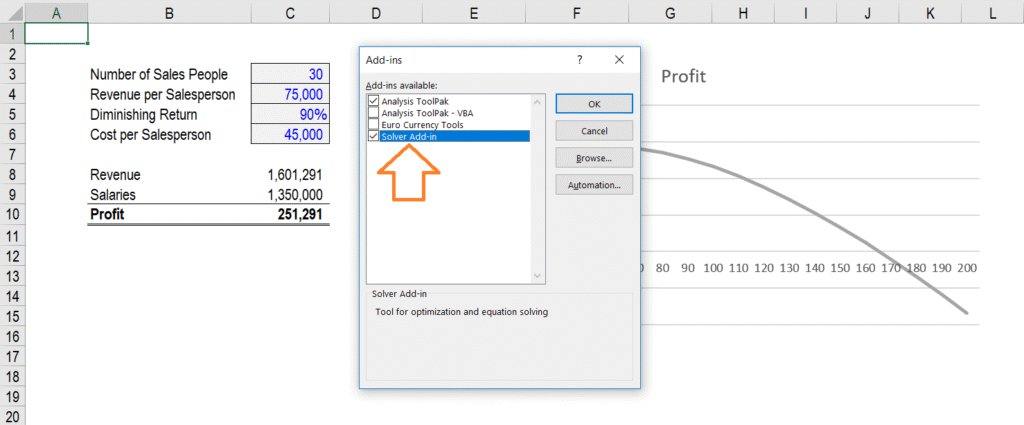
Need to maximize profit or minimize cost? Solver is your secret weapon.
Example:
A company can decide how many products to produce with limited resources to maximize revenue.
10. Keyboard Shortcuts – Save Hours Every Week
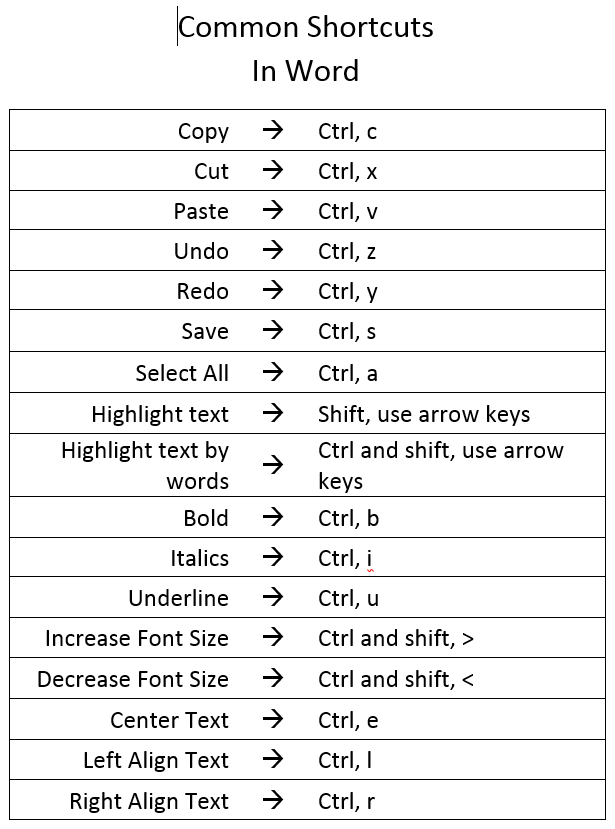
Learning shortcuts can speed up your workflow:
- F4 → Repeat last action
- Ctrl + T → Create Table
- Ctrl + Shift + L → Add/Remove Filters
- Alt + = → AutoSum instantly
Conclusion
Excel is much more than a basic spreadsheet tool—it’s a secret productivity booster when you unlock its hidden features. From Freeze Panes to PivotTables, and from Flash Fill to Solver, these tips will help you save time, make smarter decisions, and work with confidence.
Leave a Reply